I have known a lot of professional, much-published writers over the years and the pantser/plotter descriptions fit everybody to some degree. The pantser, of course, writes with minimal advance plotting by the seat of the proverbial pants and the plotter prefers to have a detailed outline while writing. I started out as a pantser and became more of a plotter.
I don’t recommend any particular approach—whatever works for someone makes sense to me, including combinations of the two approaches. I’m merely looking back at my own evolution along this line. If others shared this experience, we’re not alone. I hope I’m not completely alone, as that is a weird thought.
Starting Without a Map
When I was first writing with the goal of becoming professionally published (I had written stories from the time I was very young), I chose to begin with short stories. I liked reading them and had found a number of them meaningful to me over the years. So that’s how I started, with the intention of writing novels later.
I worked out story ideas many different ways. Sometimes I had a premise and then worked up the protagonist. Other times I had a character in mind first and sometimes, less often, a setting came to me first. I was totally writing by the seat of my pants, as the metaphor goes. One result was that I wrote a lot of fragments, attempts for which I got stuck and never figured out how to go forward. I did write some complete short stories this way. One was accepted by a regional magazine, which folded soon after my story appeared—and before they paid me the fifty dollars that had been promised. The ones I sent to major magazines and anthologies were all rejected.
At this time, I was writing fantasy and science fiction stories, which I continued to write, and also short crime fiction. Back then, I got nowhere with the latter.
Less than a year after I set out in this endeavor, I was able to take part in the Clarion Writers Workshop. At Michigan State University then, it focused on writing science fiction and fantasy. I had a great experience. Immediately afterward, I was unable to put into words what I had learned—I tried, talking to other writers as well as nonwriters. Over time, I processed a great deal of the experience to my benefit. This did not, however, influence the process I was using.
One Note, Two Notes, Three Notes... and More
While I was pantsing on a story, however, sometimes I thought of something to add farther into the story. That something might be a character, a plot device, maybe some dialogue. To avoid forgetting it, I wrote a note to myself.
That was the first step toward becoming a plotter. Yes, it took a long time, and my first two professional sales (the sale to the regional magazine was not considered professional by the Science Fiction Writers of America) were written mostly by pantsing, though I came up with the ending for the second one pretty early while I was working on it.
So, as I kept writing, I also wrote down notes for later—more and more, over time. I needed to note when in the story I planned something and began putting the notes in the order I would use them. Okay, you can see where this is going. Still while pantsing, I would sometimes take enough notes that they represented events all the way to the end. That constituted an outline—not detailed at first, but an outline.
During this time, I also came to the concept that a story is about its ending. In casual conversation, we might say a story is about a plot premise or a protagonist as “someone who does something or other.” How the protagonist resolves the conflict of the story, or fails to do so, is what the story is really about.
Over time, without any particular decision-making, I found myself writing up notes until they began to take shape as an outline every time I worked on a story. In particular, I was still writing down anything I didn’t want to forget.
Of course writers can still pants their way to an ending they have chosen. I know some writers who use sketch outlines that have only a handful of important moments written down. They often have notes, however, about details they intend to include at some point.
I was on a panel at a science fiction convention (I don’t remember when or where, but it was close to twenty years ago) where this subject came up. When my turn came, I described gathering notes, eventually arranging them in order, and adding details as I continued to think of them. At some point, strictly intuitive on my part, I was ready to start writing the first draft.
Writers: Pave a Route/Routine
Author Stephen R. Donaldson was on the panel and he offered a metaphor I like: Building a road. He likened the first notes to setting out a surveyor’s stakes and then, of course, I graded the road and eventually paved it—I think of paving as writing the first complete draft. Last, I paint the lines, as in working with details on my way to the final draft. I’ve used this metaphor from time to time to explain the process I developed over time.
Even with all the writers I know, in most cases we haven’t discussed much of this process. Once we work out a process that works for us, we just go ahead with it. If some others do this in the way I do, at least we’re not alone. So maybe instead of pantsers and plotters, we’re roadsters—a metaphor that somehow brings up images to of very old cars. Then again, I don’t feel like I’m a car, but I don’t feel like I’m pants or plots, either.
I want to stress that the entire outline remains up for revision as I go. In fact, I often reach something in the outline that I choose to delete in favor of something else. So pantsing still takes place within the plotting.
And maybe it’s all just road building.
Writers: what kind or road builder are you? Pantser? Plotter? Or something inbetween? Please share it with us down in the comments!
About William F. Wu
William F. Wu is a science fiction, fantasy, and crime author whose traditionally published books include 13 novels, one scholarly work, and a collection of short stories. Regarding his more than seventy published works of short fiction, he has been nominated for the Hugo Award twice, for the Nebula Award twice, and once for the World Fantasy Award. His novels Hong on the Range and The Temple of Forgotten Spirits are available in paperback, ebook, and audiobook editions through Boruma Publishing. His science fiction collections Intricate Mirrors and Ten Analogs of the Future, the latter being ten collaborations with Rob Chilson, are available in ebook editions. For more information, see williamfwu.com.
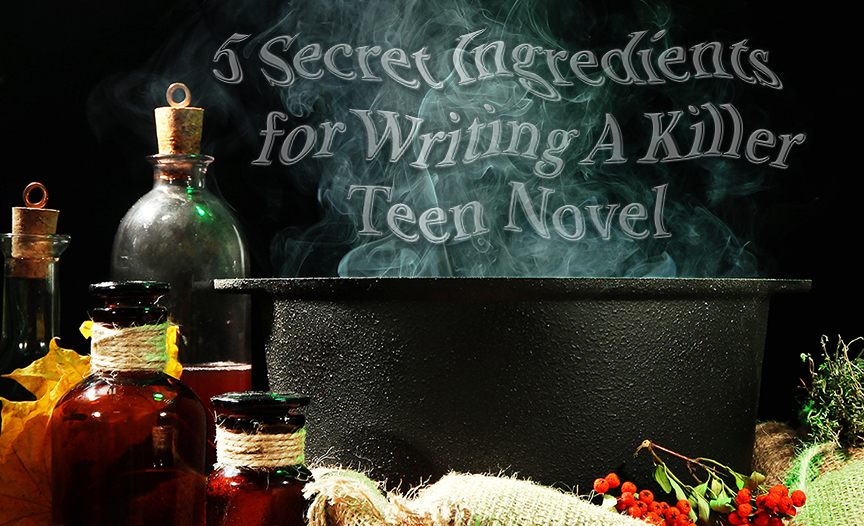
Today I will give you 5 secret ingredients that will inspire teens to shell out their allowance money to buy your super-cool teen novel. And not just teens…
If you are writing Young Adult fiction, nearly 50% of your audience may be adults.
Yep, and some of them might be as old as eighty or maybe even ninety. Age doesn’t matter. It really doesn’t, not when it comes to reading teen novels. Some people stay young at heart forever. So whether the average YA reader is 65 or 12, when they pick up your book, they’re looking for a novel with some very specific features.
Those features may not be the ones you think they are…
When I got into the fiction business, I assumed I was writing romantic comedies for adults. Ha! Apparently not. My brother-in-law, a professor of English at a prestigious university and at the time also president of the National English Teachers Association, said, “You do realize you are writing YA, don’t you?”
I insisted he was wrong, but a few months later, a prominent book reviewer contacted me requesting an interview. “Kathleen, you do know you are writing YA, don’t you? And you really ought to be more intentional about it.”
More intentional??? I intended to write comedic, satirical romances like Jane Austen and Oscar Wilde. I thought that was what I’d done. Following the book reviewer’s stern lecture, I decided to figure out why everyone thought I was writing YA.
What is the difference?
I needed to know, so I read YA and middle-grade fiction. I studied manuals on writing for that market. Some advice seemed to fit, some did not. I read more books, talked with teens and librarians, and kept reading.
(Did you notice the abundant use of the word read?) Here’s a quote from New York Times bestselling author Tony Hillerman “When I was teaching writing — and I still say it — I taught that the best way to learn to write is by reading.”
After reading and studying, I tackled a new series armed with an arsenal of YA-centric secret weapons. My alternate history for teens garnered multiple offers and finally sold to TorTeen—MacMillan’s teen publishing imprint at Tor Forge. The New York Times Sunday Book review called School for Unusual Girls, “…enticing from the first sentence.” Kansas NEA awarded it “Best of the Best” for high schools, it was a featured Junior Library Guild Selection, Texas ALA made it part of their SPOT middle grade reading program, and it was optioned for film by Ian Bryce, producer of Saving Private Ryan, Spiderman, Transformers, and other blockbusters.
I mention these accolades so you’ll have confidence that I know a little something about writing a successful teen novel.
My Top 5 Secret Ingredients…
Dozens of websites out there can give you the basics, but I figure you here at WITS are above all that. You’re ready for the secret sauce recipe, right? You already know the main characters can’t be thirty-five, that mama can’t ride in on her white stallion and save the kid from all the trouble he’s gotten into, and generally speaking, it’s not a good idea to throw in any graphic language or erotica. Although…I’ve seen that done. I’m not advocating it, just saying the lines keep shifting, and I’ve seen it done.
Only Splendid Characters Are Allowed into the Inner Sanctum
The first secret ingredient is a relatable character. “Okay, okay,” I hear you saying, “That’s not a secret. There are hundreds of books on characterization.” And I suspect you’ve probably read dozens of them. I’m with you. My personal favorite is an older book by Robert Peck called Fiction is Folks.
Pssst, the actual secretis building a character that teenagers trust enough to allow into their inner sanctum, a character they can identify with. Trouble is, there isn’t just one character type everyone will find relatable. Not that you’re writing for everyone. You’re not! You are writing for YOUR unique reader. See my post on finding YOUR reader.
However, there seem to be several character traits that have a remarkably universal appeal. Harry Potter is one of the most widely-loved characters in Fictionville. Let’s examine his relatability factors:
• Orphaned.
While not all of us have been orphaned, many readers have felt left out, unloved, or unimportant at one time or another in their lives. the issue is not whether your character has both living parents, one, or none. The feeling of being abandoned and on their own is the critical component.
• Parents died trying to save him.
This is a hopeful characteristic. Even though now others minimize him and make him feel valueless, at one time Harry was so important his parents and others were willing to die to save him. This goes to the reader’s need to feel important despite external evidence.
• Feels left out and alone.
This is a fairly universal experience, especially among young readers. Addressing and arcing this emotion is a critical factor in teen literature.
• The worst villain in the world wants to kill or convert him.
This is a handy factor. The fact that this terrifyingly powerful villain is after him validates Harry’s importance while also providing jeopardy and conflict for the story.
• He’s smart but unassuming.
Readers relate to characters who are smart but not braggadocios. Clever but not all-knowing.
• Brave but not fearless.
It’s okay to be afraid. Fear is normal. Most readers crave a fictional experience wherein a character overcomes their fears. However, a total cowering scaredy-cat might be a turn-off.
• He discovers he is gifted with special powers
Characters with a gift or gifts are appealing—it needn’t be magic, but it does need to be something interesting. All of us are gifted in some way or another. It is exciting, rewarding, and satisfying to discover those gifts. Consider Anne of Green Gables. She wasn’t magic; she was irrepressible and incurably enthusiastic and able to lift the spirits of people around her.
Take a look at other successful characters who share many of Harry Potter’s appealing traits: Luke Skywalker, Cinderella, Snow White, Black Beauty, Heidi, Tom Sawyer, Huck Finn, Anne of Green Gables, Pippi Longstocking, Tris Prior in Divergent, Katniss Everdeen in Hunger Games, Percy Jackson in the Lightning Thief, and the list goes on for miles.
• Unpredictable Adventure
Take your interesting relatable characters and plunge them into an unpredictable adventure! WHOA! Wait, don’t grab your pencil just yet.
Busting free of predictability is trickier than you think. You have watched, read, or listened to thousands of stories. THOUSANDS! In his brilliant book on plot, Robert McKee warns us not to use the first five ideas that come to mind. The first five ideas will be mimics of ones we have seen, heard, or read. He encourages writers to brainstorm until they reach the tenth idea. Then they’ll begin getting fresher ideas. Go ahead, try it. Getting to ten is tough.
Years ago, I put my psychology background to use and built a brainstorming shortcut that I shared with many of my writing students. I love this tool. It is so handy that it has been plagiarized all over the internet. I want to give it to you today in its original form along with my commentary. It tricks your brain into bypassing the stuff you’ve seen a hundred times.
Kathleen Baldwin’s Magical Marvelous Idea Jump-Starter Tool
Let’s employ Joss Whedon’s superbly relatable character, Buffy the Vampire Slayer. Let us suppose Buffy is walking through a graveyard at midnight...
1. What’s Obvious?
What does your reader expect will happen? What idea pops into your head first? The obvious idea is:
vampire jumps out and attacks Buffy; they fight, and she wins.
Yawn.
2. What’s blatantly opposite?
Consider all the elements of the first concept and write down a directly opposite idea, no matter how inane or outlandish:
What if a happy clown pops out of a headstone and serenades Buffy.
Um, okay… that’s weird, but yes, it is the opposite and now I’m curious.
3. Expand
At this point, your brain will be forced out of the expected scenarios and into the unexpected range. Now think of 5 or more opposite butslightlyless outlandishideas. Allow yourself to expand upon each idea.
An old lady sits in a rocker, knitting in the graveyard.
This is not quite as kooky as the clown, but let’s try to relate it to Buffy.
Buffy’s dead mother floats up singing a ghostly warning—eerily off-key.
Better. Her mom’s ghost is more interesting than the old lady. Push it further, and because it’s for teens, the mom may not be the best choice.
What if Buffy discovers a baby sleeping behind a tombstone?
Hhmm. I like it. How can we make this even more interesting?
What if the baby is a toddler? And maybe the little guy looks a lot like her missing boyfriend, Spike.
Nice! Now we’re getting somewhere!
Spike has been trapped in a time warp. Little toddler vampire Spike is crying, lost, alone, hungry… what’s a vampire killer to do?
Excellent! Now we have some intriguing useful unexpected conflict!
The goal is to make your reader wonder things such as:
What’s going on here?
Uh-oh, that baby looks like trouble…
Wait! Does this mean what I think it means?
Oh, my gosh, what’s going to happen now?
Rules Make the world go around wrong!
Rules. Rules. Rules. Every game has rules.
This third ingredient seems ironic. The idea of rules sounds counter to anything a young adult might like, right? Except it turns out they’re essential to a successful YA story. Like all the rest of us, teens are confronted with rules all the time. Learning how to handle, circumvent, live happily with, or overcome wicked rules is a crucial part of our human experience.
Plunge your relatable characters into an unpredictable adventure and pit them against a system of, what I call, adversarial rules.
Fortunately, there are hundreds of rules and regulations beyond governmental systems available for you to use: societal norms, scientific laws, magic canons, unwritten expectations, parental strictures, school rules, physical and natural laws, etc..
Examples:
For instance, in John Green’s bestselling novel, The Fault in Our Stars, Hazel and Augustus are up against the natural laws and medical rules pertaining to cancer.
Hunger Games is a straightforward example of the main character being pitted against an unjust governmental regime.
On the other hand, in Harry Potter, the magic world rules are not unjust, but Voldemort has abused them, and Harry must learn them and break them to save the day.
Anne of Green Gables is a lovely example of the rules consisting of local conventions and status quo, both of which she must confront to achieve happiness.
In the masterpiece, Lord of the Flies, Simon must struggle to survive the life-threatening tyranny of lawless rule from his peers.
Get Real! Real Emotional — Real Logical
Readers read for vicarious emotional experiences. Whether you are writing high fantasy or a contemporary issue novel, your emotions must splash across the page in a big way. They must strike your reader with a dramatic slug to the gut and yet be grounded in rock-solid logic.
These two ingredients, angst and logic, may seem like fire and water, except they aren’t. Strong emotions and logic are more akin to the relationship between yeast and flour in breadmaking. They work together to create powerful results even though they seem like opposites. Handle them together because if they don’t work together properly, neither one rises.
A story may be spiced with relatable characters and stirred with imaginative action, but without powerful emotions and ironclad logic, it will land flatter than a saltless soda cracker.
Check your emotional logic with a teeny tiny eyelash comb.
Run it through beta readers, friends, and critique partners. Ask them to note any missing emotional reactions, and point out any passages where the emotions don’t make sense, are unclear, lack depth of feeling, or don’t feel realistic.
Employ body language and visceral reactions in your writing. Make your readers’ pulses race and their palms sweat right along with your characters. Margie Lawson’s WITS posts are extremely helpful for learning how to get believable emotion on the page.
Additionally, your overall story arc needs to bear a dramatic and satisfying change. That emotional dynamic will be why your reader tells her best friend, her mom, and the neighbor girl that they must read your book. It will be the reason a dental assistant will say dreamily as she’s cleaning your teeth, “I read the best book yesterday.”
Talk To Me — Voice
Voice, our fifth ingredient, is a somewhat ethereal concept to discuss and deserves an entire treatise of its own. There are several good discussions here on WITS. Type voice into the search bar, and you’ll find several helpful posts. I am particularly fond of this one by Julie Glover,
Your voice is all about who you are and allowing that to come out on the page. So, my suggestion is to relax and be open and truthful. Teens can spot phoniness from ten miles away. And whatever you do, don’t talk down to them.
What is voice, exactly? More importantly, what is your voice? I’ll briefly mention the how, what, where, and why of voice.
Style.
Most writers have a unique way of putting words together, and that’s part of voice. Your personality influences HOW you tell a story—your construction and delivery.
Content.
What stories do you have hidden inside you? What do you think about the world? What experiences from your life will you bring into your work? Content is all about WHAT you want to say.
Enrichment details.
This is the WHERE of your voice. Where have you lived? Where have you traveled? Everything you write is enriched by your experiences and your distinctive way of looking at the world.
Commentary.
This is the WHY of your writing. Why are you telling this story? What hidden truths are you sneaking into our subconscious? Whether you know it or not, when you tell a story, you communicate your perceptions of the world.
There you have it! The 5 Secret Ingredients
I hope these five powerful elements, characterization, unpredictability, rules, emotional logic, and voice, will resonate with you and enhance your writing. Now it’s your turn!
Do you have any secrets for writing for teens you can share with us?
About Kathleen Baldwin
Kathleen Baldwin is an award-winning author with more than 620,000 copies of her books in the hands of readers around the globe. Her books have been translated into several languages, and a Japanese publisher even made Lady Fiasco into a manga. Stranje House, her alternate history series for teens was licensed by Scholastic for school book fairs and optioned for film by Ian Bryce, producer of Spiderman, Transformers, Saving Private Ryan, and other blockbuster films.
Kathleen loves teaching writing. She’s excited her high-demand class on Scene & Sequel—A Super-Powered Writing Tool is now available as a lecture/workbook packet through Margie Lawson’s Writing Academy.
Last time here at Book Cover 101 we talked about how romance cover trends are changing in a huge way toward more illustrations instead of photography, but they aren’t the only covers that are shifting with the times.
Today let’s take a look at another huge genre category: Mystery/Thriller. While that’s really two genres I’m lumping them together because their covers play in the same sandbox, with slight variations. This includes psychological thrillers, spy thrillers, legal thrillers, police procedurals, private detective, and noir. Cozy mysteries have been and still are a little different from the rest, but I’ll cover them as well.
Trends in Mystery/Thriller Book Covers
Generally, the majority of mystery/thriller covers have always included darker tones, often with silhouetted figures rather than the faces you used to see on romances, except for cozy which almost always featured fun illustrations.
But these days, the tonal shift leans more toward an action movie poster vibe, rather than an ominous one.
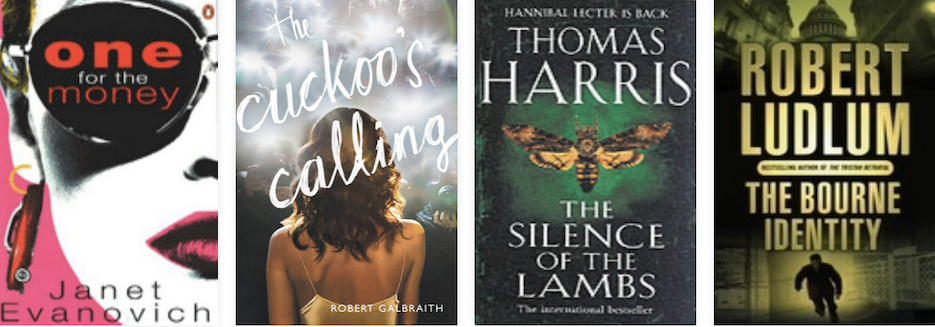
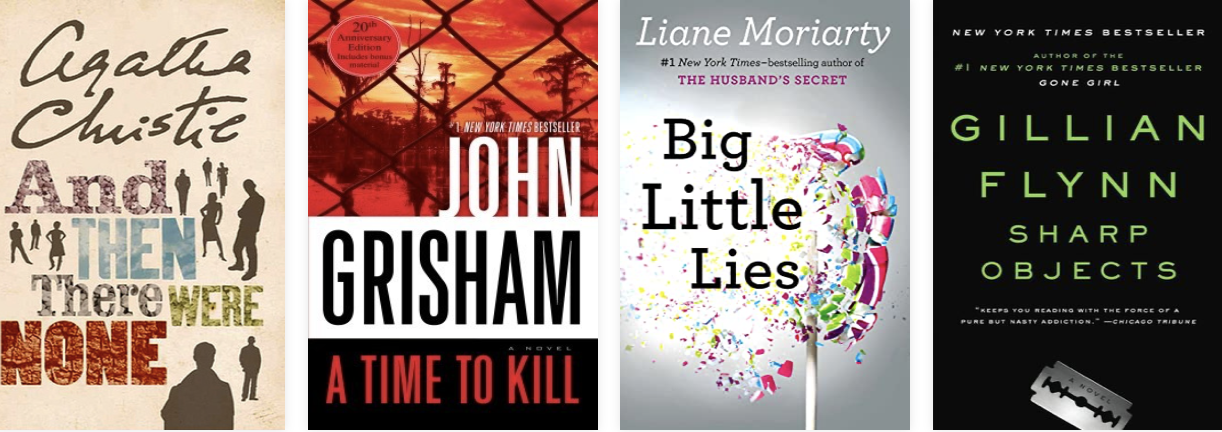
For example, check out these bestsellers from a mere decade or two ago:
Notice the tones…black, or off-black, or angry red but not bright red. In particular, notice the fonts. The biggest change I see lately is in the typography.
These older covers have plain fonts, for the most part. A lot of them use Futura or Helvetica (Arial). They’re mostly just stuck on there, with the author name being huge and the rest…meh, an afterthought. The background image was very much an integral part of the message, especially on a cover like Silence of the Lambs (before they put the movie version on).
New Trends for Mystery/Thriller Covers
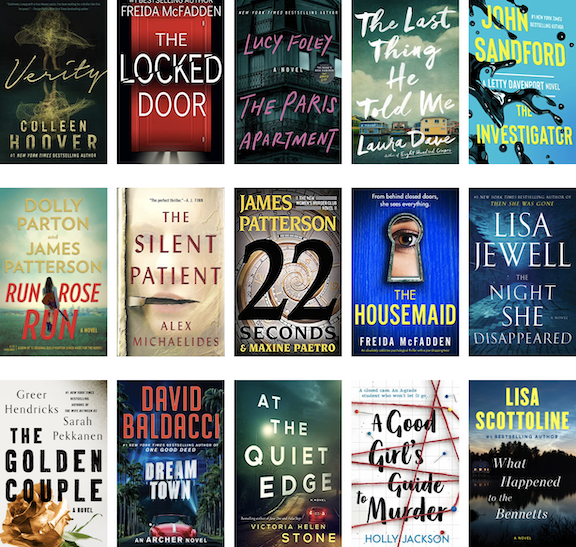
The trend now is a lot more in your face with the fonts. The background is basically there to serve up the title in a nice contrasty way. Silhouetted people are almost non-existent. For example, these “most read” covers of 2021-2022 according to Goodreads:
These covers would all make awesome action movie posters, which I think is the point of the current trend. One thing mystery/thriller covers have in common with romance these days is an aversion to real people/faces. At most, you get a view of someone’s back or a close-up of a body part.
I’m a huge fan of this trend because I think these covers are incredibly eye-catching. They make me want to click every time.
As with the current romance trend, though, I’m not sure they shout “mystery” or “thriller” anymore. I mean…unless murder is in the title, can you tell?
Trends in Cozy Mystery Book Covers
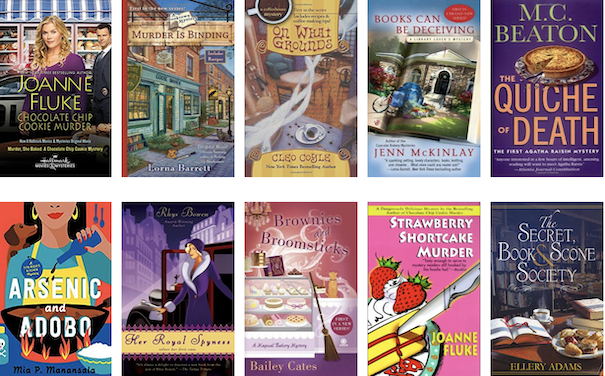
Cozy mysteries are shifting too, but it’s a lot more subtle. They still feature illustrations with a fun things-will-all-work-out-in-the-end vibe, but lately the artwork is less complex, and a bit brighter. For example, here are some bestsellers from a few years ago:
See the fun scenes and catchy titles? Today, it’s inching ever so slowly toward less complex artwork, with a little more emphasis on brighter colors. It’s a subtle change, though, and not one that makes a huge difference. All of these still shout about fun times with murder.
Overall, as with romance, mysteries and thrillers are shying away from showing faces in favor of graphics and typography. Again I think the reason behind this is that stock photography hasn’t kept up with the growing demand for quality photos of new and diverse models.
It’s a lot easier and cheaper to pay an artist to draw something, and a lot easier for said artists to put their creations up on stock sites, than it is to buy an expensive camera, pay a model, get releases, etc.
If you write mysteries or thrillers, and your sales have slowed, you might think about upping your cover game, especially with regard to the typography. Treat your title as the main artwork, and make it bigger and more eye-catching. Let the background image support the words, rather than the other way around.
Have you noticed any mystery/thriller cover trends changing that I’ve missed? Be sure to mention them in the comments! (I'm open for all cover questions.)
Next time, we’ll dive into Fantasy and Sci-Fi. Until then, thanks for reading!
About Melinda
Melinda VanLone is a coffee addict, a cat lover, and avid writer of stories about rascally heroes and sassy heroines who live happily ever after in spite of themselves. She shares her house with her fur babies and the love of her life, Mr. Melinda, who spends most of his time at home huddled under blankets because the thermostat remains under her iron control.
When she's not playing with her imaginary friends you can find her designing covers that sell, taking brisk walks around the neighborhood and failing to resist the pistachio muffins at the nearest local coffee shop. Head on over to melindavan.com to check out her latest writerly doings, or hop over to bookcovercorner.com to peak at her cover designs.